Introduction
Christine Staiger 
Raoul Schram
Overview
| Questions | Objectives | Key Concepts / Tools |
|---|---|---|
| What is iRODS | Learn the idea of virtual data organisation | Collections, Data Objects, Replicas |
| How does iRODS store and describe data | Understand storage resources and metadata | Resources, Logical locations, System metadata, User metadata |
| What is iBridges | Learn how iBridges provides access to iRODS | Python API, Command line interface, Graphical interface |
| How iBridges works internally | Understand the relationship with python-irodsclient | irods_session, API features, Underlying library |
This training gives you a first look at iRODS and iBridges. Many research data management platforms at universities, such as Yoda or the Research Data Management System at the University of Groningen and many others, use iRODS behind the scenes. As a researcher, you may never have interacted with iRODS directly, but you work with it whenever you upload, organise or retrieve data in these platforms.
We begin with iRODS itself. After that, we introduce iBridges, the client suite that helps you work with iRODS in a simple and practical way.
What iRODS is
iRODS stands for Integrated Rule Oriented Data System. It is not a storage system. Instead, it sits on top of storage systems and gives you a unified way to organise and access your data.
Researchers often think of data in terms of folders and files. iRODS presents your data in a similar way, but the underlying mechanics are different.
How iRODS differs from a normal file system
A normal file system stores files in one physical place. A folder corresponds to a real directory on a disk. iRODS does not work like that.
iRODS gives you:
- Collections that look like folders but do not correspond to physical paths
- Data Objects that look like files but can have multiple replicas
- A virtual view of your data that hides the physical storage layout
This means that two Data Objects in the same Collection can live on completely different storage systems. It also means that a single Data Object can have several identical copies stored in different places for safety or performance. Those copies are called replicas.
Storage resources
Your data lives in storage resources inside an iRODS zone. Each resource has a logical name and a physical location. The physical location can be a filesystem path or an object storage bucket. iRODS decides where your data goes. Advanced users can influence this behaviour, but beginners do not need to worry about it.
This diagram see Figure 1 shows an iRODS zone that contains a collection called my_project. Inside this collection there is a data object named report.csv. Although the data object appears as a single file in the virtual iRODS view, it is physically stored in two different storage resources. One resource holds the active copy and the other holds an archive copy. iRODS keeps track of both replicas and presents them as one logical data object to the user.
Summary
Data in iRODS is virtualised. You see Data Objects and Collections, but the actual files may be stored anywhere. Collections do not refer to physical paths. Data Objects can have multiple replicas of a file. All of this is managed by iRODS so that you can work with your data without thinking about the underlying storage.
Metadata in iRODS
Metadata is central in iRODS. It describes your data and makes it discoverable.
Types of metadata
System metadata
Created automatically by iRODS. Examples are timestamps, identifiers and checksums.User metadata
Added by developers or researchers. It can describe the content, the experiment, the instrument or anything else that helps you find or organise your data.
User metadata can also trigger automated behaviour. For example, a workflow may start when a certain metadata attribute is added.
Data discovery
Rich metadata allows you to find data by author, project, instrument, keywords or case identifier. Metadata can be attached to Data Objects, Collections, Users, Resources and even entire zones. All metadata is stored in a relational database.
Summary
Metadata helps you find your data. It can describe anything you choose. It is stored in a database and can be searched. You will see examples of automatic metadata and you will work with metadata yourself in the exercises.
What iBridges is
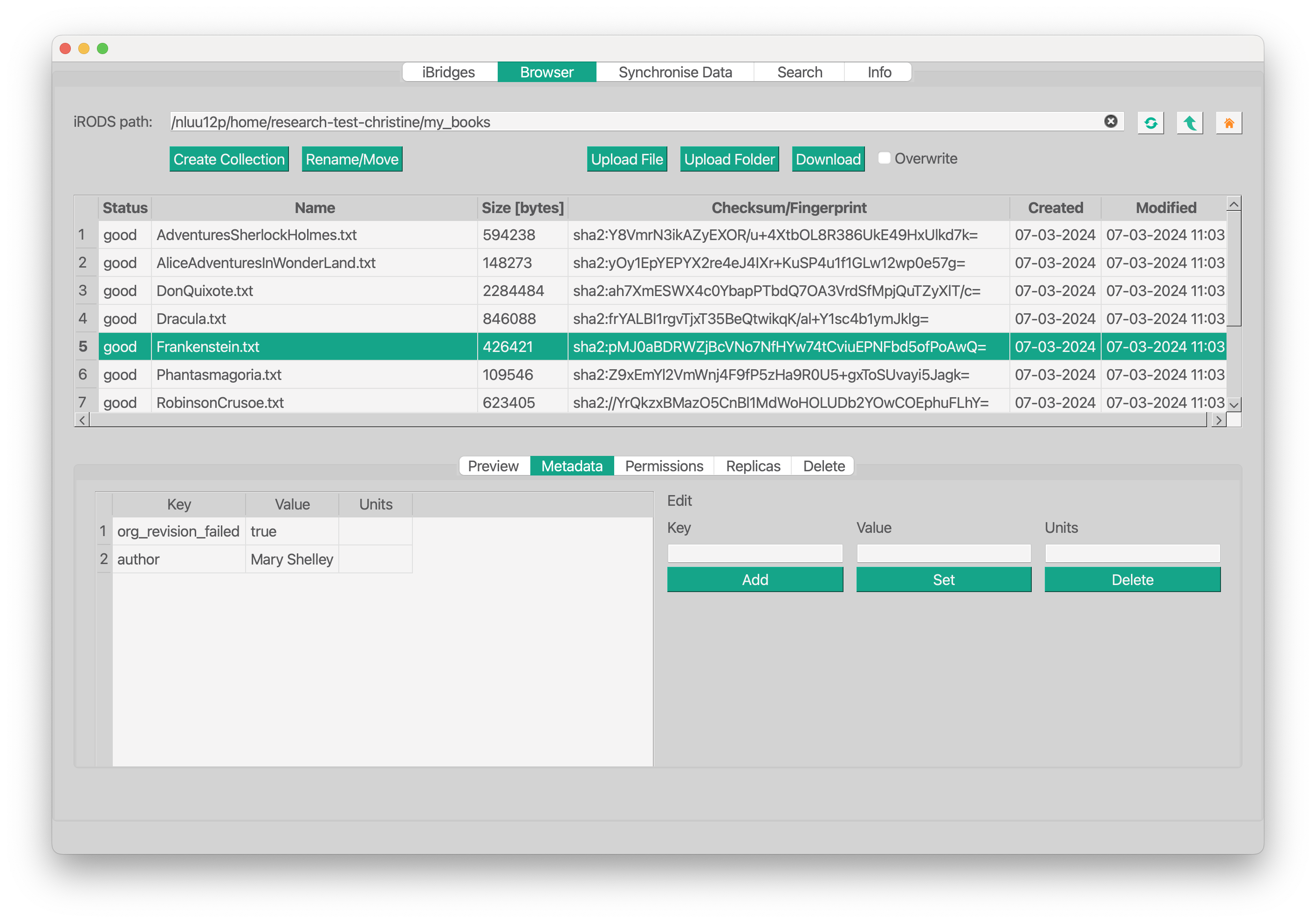
iBridges is a client suite that makes iRODS accessible to researchers, technicians and data managers. It offers three ways to work with iRODS:
- Python API
- Command line interface with auto completion
- Graphical user interface
It works on Windows, macOS and Linux.
Who uses iBridges
- Researchers who want to explore their data interactively
- Researchers who need to pull subsets of data into compute workflows
- Lab technicians who upload instrument output from Windows machines
- Data managers who monitor incoming data from instruments or colleagues
What iBridges can do
- Connect to your iRODS server
- Upload and download data
- Manipulate metadata
- Synchronise local folders with iRODS
- Create and manage tickets for temporary external access
- Search metadata across datasets and collections
- Provide safe defaults for working with research data
The iBridges Python API
The iBridges API is a convenience layer around the python irods client. When you connect to iRODS using iBridges, an irods session is created automatically. You can still use all python irods client features. If you are a scientific programmer, the API gives you a simple way to work with iRODS in scripts and workflows.
The iBridges command line interface
If you only want to upload or download data, you do not need to write Python code. The command line interface provides simple commands for common tasks. It also offers auto completion to help you explore your data.
The iBridges graphical user interface
The graphical interface is the easiest way to start working with iRODS. It lets you browse collections, upload files and edit metadata.
Relationship between python irods client and iBridges
You do not need to choose between them. iBridges uses the python-irodsclient internally. When you connect, you automatically get an irods_session that you can use directly if you want to.