Prerequisites
Christine Staiger 
Raoul Schram
This chapter explains how to prepare your system for working with iBridges, iBridgesGUI and iBridges UU Servers.
The course is designed for researchers with little or no experience with Python.
To make installation simple and reliable, we recommend using the free version of Anaconda.
Why Anaconda
Anaconda provides a beginner friendly Python setup.
It includes a stable Python interpreter, a package manager called conda, an environment system that keeps tools isolated, and a graphical launcher.
For new researchers this reduces installation problems and makes working with tools like iBridges and iBridgesGUI much easier.
Step 1: Install Anaconda
Download Anaconda
Please download the “Anaconda Distribution” from the official Anaconda site
Run the installer
Accept the default settings.
On Windows, allow Anaconda to register itself as the default Python.
If the installer asks whether it should add Anaconda to your PATH, you can accept this option.
Step 2: Working with Anaconda Navigator and Jupyter
For this course you will use the default environment that Anaconda creates automatically.
All installation steps will be performed through Anaconda Navigator and the shell that is available inside Jupyter.
Open Anaconda Navigator
Start the Anaconda Navigator application.
In the main window you will see several applications that can be launched, including Jupyter Notebook and the Terminal.
Open the Terminal to install iBridges and the iBridges GUI.
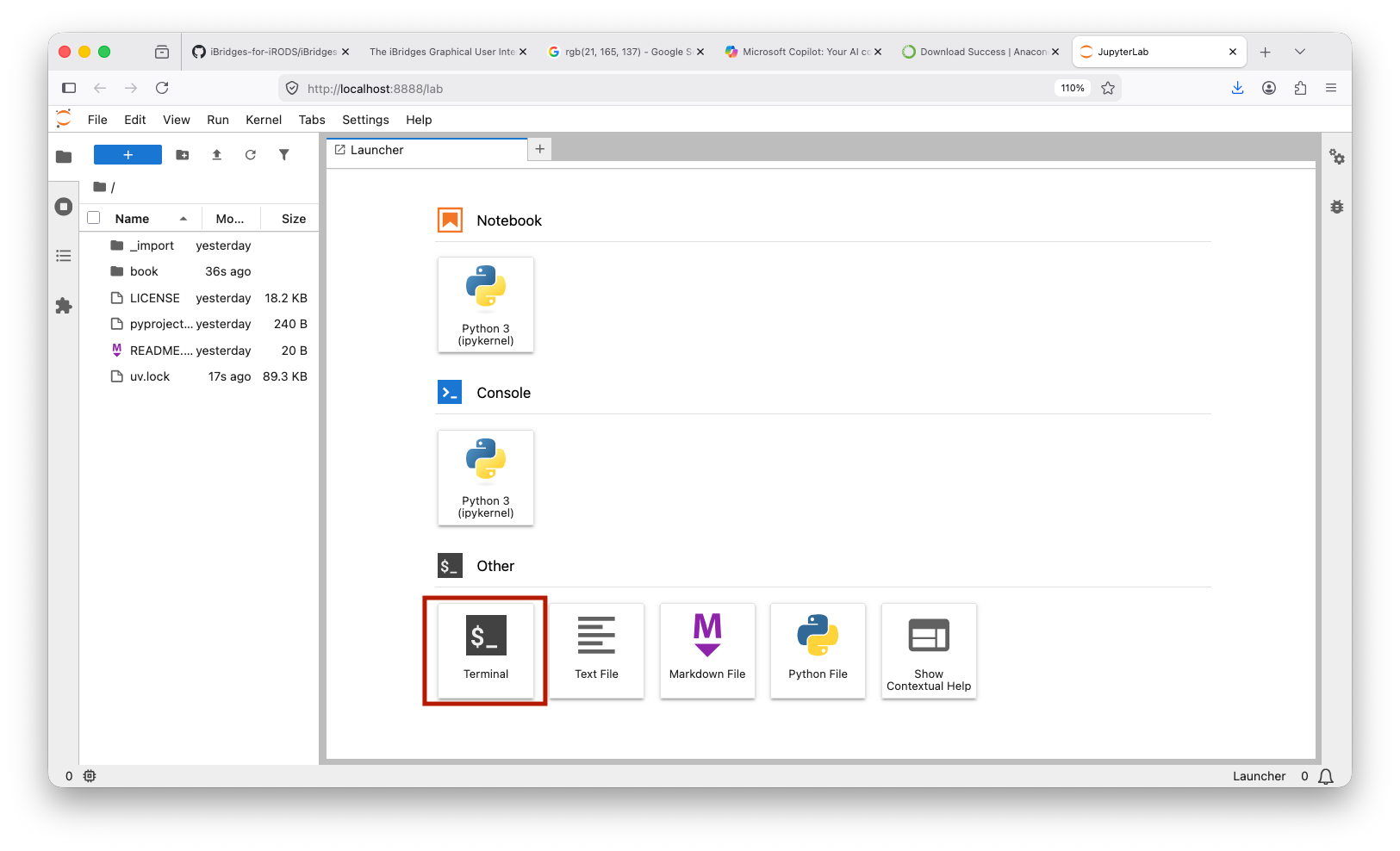
Step 3: Install iBridges
In the terminal type
pip install ibridgesThis installs the iBridges API and Commalnd Line Interface.
Test the installation by typing
ibridges --helpYou should see the version and the help menu of the commandline interface:
iBridges CLI version 2.1.1

Usage: ibridges [subcommand] [options]

ibridges commands (v2.1.1):
    ls (list, l):
        List a collection on iRODS.
    pwd:
        Show current working collection.
    tree:
        Show collection/directory tree.

...
Step 4: Install iBridges GUI
Install the graphical interface
pip install ibridgesguiStart the GUI with
ibridges guiThis opens a desktop application that allows you to work with iRODS and metadata without writing Python code.
Step 5: Install iBridges UU Servers
Install the Utrecht University server profiles and workflow helpers
pip install ibridges-uu-serversAfter installation, the GUI will automatically detect UU server profiles and make them available in the connection menu.